Step-by-step guides to quickly fix Windows 11 errors, performance issues, and system problems. Practical solutions for beginners and advanced users alike.
Windows 11, released by Microsoft in October 2021, represents a major leap in design, performance, and usability compared to Windows 10. With a fresh user interface, improved productivity tools, and enhanced security, Windows 11 is designed to meet the needs of both casual users and professionals. If you’re considering upgrading, this guide covers everything you need to know.
System Requirements
Before upgrading, ensure your device meets Windows 11’s minimum requirements:
Processor: 1 GHz or faster, 2+ cores, 64-bit compatible
RAM: 4 GB minimum
Storage: 64 GB or more
Graphics: DirectX 12 compatible
Firmware: UEFI, Secure Boot capable
TPM: Version 2.0
Tip: Check device compatibility using Microsoft’s official PC Health Check tool.
If you've ever clicked on the Microsoft Store and been greeted with a blank screen, an endless loading spinner, or a frustrating error message — you're not alone. Microsoft Store issues are among the most common complaints from Windows 11 users worldwide, and they can hit at the worst possible times: when you're trying to download a new app, update an existing one, or install a game.
The good news? Most Microsoft Store problems are surprisingly easy to fix — even if you're not a tech expert. In this beginner-friendly guide, we'll walk you through every common cause and solution, step by step, in plain English. No technical background required.
Let's get your Microsoft Store back up and running.
One of the most common issues faced by Windows 11 users is when a USB device is not recognized by the system. Whether it is a flash drive, external hard disk, or peripheral device, this problem can disrupt productivity and raise concerns about data accessibility. This article provides a clear breakdown of the causes and practical solutions to resolve the issue efficiently.
Common Causes of USB Not Being Detected
Several factors can lead to this issue:
Outdated or corrupted USB drivers
Power management settings disabling USB ports
Faulty USB ports or damaged hardware
File system corruption on the USB device
Windows 11 update conflicts
BIOS or chipset-related issues
Understanding the root cause is critical before applying any fix.
Step-by-Step Solutions
1. Check Physical Connection
Start with basic diagnostics:
Try a different USB port
Test the device on another computer
Inspect for physical damage
If the device works elsewhere, the issue is likely system-related.
2. Restart Your Computer
A simple restart can reset temporary system conflicts and reload drivers.
USB detection issues in Windows 11 are typically caused by driver conflicts, power settings, or hardware faults. By systematically applying the solutions outlined above, most users can resolve the problem without advanced technical intervention. If the issue persists, hardware replacement may be necessary.
Windows 11 still matters in 2026 because it is Microsoft’s current mainstream desktop operating system for modern PCs, and it is where the company continues to concentrate its design, productivity, gaming, and security improvements. For general users, students, professionals, and PC buyers, Windows 11 is no longer just “the newer version of Windows.” It has become the standard experience on new laptops and desktops, with features built around today’s hybrid work habits, multitasking needs, and stronger hardware-level protection. If you are buying a new computer, comparing upgrade options, or wondering whether your current device should move on from Windows 10, Windows 11 is the platform you need to understand. It offers a more refined interface, practical window management tools, tighter security requirements, and better support for newer hardware. At the same time, it is not the right fit for every older machine, which makes compatibility one of the most important parts of the conversation.
What Is Windows 11?
Windows 11 is Microsoft’s modern desktop operating system and the successor to Windows 10. It keeps the familiar Windows ecosystem of apps, files, gaming support, and productivity tools, but presents them through a redesigned interface and a stricter hardware baseline. Microsoft positions it as a more secure, more streamlined, and more productivity-focused version of Windows for current-generation devices.
How Windows 11 Differs From Windows 10
The difference between Windows 10 and Windows 11 is not just cosmetic, although the visual redesign is the first thing most users notice. Windows 11 introduces a centered Start menu and taskbar by default, a cleaner Settings experience, stronger integration of Snap layouts, and a more modern design language overall. Beyond looks, Microsoft also raised the minimum hardware and security requirements, making Windows 11 more selective about which PCs can officially run it. For users, that means Windows 11 feels more polished and better optimized for current hardware, while Windows 10 remains more flexible for older devices. In practical terms, Windows 11 is the more future-facing platform, but Windows 10 may still be the easier short-term option on unsupported systems. That tradeoff is central to deciding whether a Windows 11 upgrade makes sense.
New Interface and Design
One of the strongest Windows 11 features is its cleaner, more modern visual identity. The centered Start menu, simplified taskbar, rounded window corners, refreshed icons, and tidier Settings app give the operating system a more contemporary feel without abandoning the core Windows workflow. Microsoft’s own messaging around Windows 11 emphasizes a calmer and more organized desktop experience, especially for users who spend long hours working on a laptop or multitasking across several apps.This redesign matters because operating systems are not just technical platforms anymore; they are daily workspaces. A more readable interface, better visual hierarchy, and easier navigation help reduce friction for students managing research tabs, professionals working across documents and meetings, and casual users who simply want their PC to feel less cluttered. Windows 11 succeeds here by making the desktop feel more intentional and less busy than older Windows versions. This is one reason it continues to appeal to buyers shopping for a newer machine.If you are considering a new device built specifically for the latest Windows experience, browse these Recommended Windows 11 Laptop Deals
Productivity Tools: Snap Layouts and Virtual Desktops
Productivity is one of the areas where Windows 11 makes its clearest everyday case. Snap is a standout feature, allowing users to quickly resize and position windows by dragging them to screen edges or choosing predefined layouts. Microsoft explains that Snap layouts can also be invoked by hovering over the maximize button or pressing Win + Z, making the feature easy to access while working across multiple apps.
Why Snap Layouts Matter
Snap layouts are not just a visual trick. They are genuinely useful for modern workflows. A student can keep lecture notes, a browser, and a PDF open in a structured grid. A professional can place Teams or email on one side, a spreadsheet in the center, and a browser dashboard on the other. A content creator can organize source materials, drafts, and editing tools without manually dragging windows into place all day. Microsoft explicitly frames Snap as a time-saving tool for organizing work on screen, and in practice that description holds up.Virtual desktops add another layer of organization. They allow users to separate different contexts, such as school, work, and personal browsing, into distinct desktop environments. Even if someone never touches advanced features like scripting or automation, this built-in separation can make a Windows PC feel much more manageable. Combined with Snap, virtual desktops are a strong reason many users find Windows 11 more efficient than Windows 10 for everyday multitasking. This is also where extra hardware can help; a better monitor, dock, keyboard, or storage upgrade can make the experience even smoother. See these PC Upgrade Tools and Accessories
Security Improvements
Security is one of the biggest reasons Microsoft pushed stricter Windows 11 system requirements. Official requirements include TPM 2.0, UEFI firmware, and Secure Boot capability, along with a compatible 64-bit processor. Microsoft states that these requirements are intended to support a dependable computing experience now and in the future, and in practice they establish a more modern security baseline than Windows 10 required.For ordinary users, the most important takeaway is simple: Windows 11 is designed with stronger built-in protection assumptions. Hardware-backed security features help defend against classes of attacks that older, more permissive device standards were less prepared to handle. For businesses, remote workers, and people who keep sensitive documents on their PCs, that matters a great deal. The downside, of course, is that some older but still usable PCs fail the Windows 11 requirements check, not because they are slow, but because they lack the required security components.
Gaming Features
Windows 11 is not only for productivity. Microsoft continues to position it as a strong gaming platform, especially on newer PCs. Official Windows 11 gaming materials highlight Auto HDR, DirectStorage, and support for DirectX 12 Ultimate as key features. Auto HDR can improve color and contrast in supported games, while DirectStorage is designed to reduce load times by allowing game assets to move more efficiently to the GPU on compatible systems.
Performance and User Experience
Windows 11 is best understood as an operating system designed to feel more at home on newer hardware than on legacy PCs. Microsoft’s requirements and marketing both point in that direction. The result is a user experience that often feels smoother, cleaner, and more coherent on a modern laptop or desktop, especially when paired with current processors, SSD storage, and high-resolution displays.
From a day-to-day perspective, the benefits show up in small but meaningful ways: window management is easier, the desktop feels tidier, settings are less confusing, and modern features are surfaced more clearly. This is why many users who switch to Windows 11 do not necessarily describe it as revolutionary, but they often find it more pleasant to live with. The experience is especially good for users whose daily routine involves many browser tabs, Office documents, messaging apps, and cloud storage tools. To complement that workflow, you can explore Windows Productivity Software Offers
Windows 11 System Requirements
Before any Windows 11 upgrade, users should verify that their device meets Microsoft’s minimum requirements. According to Microsoft’s official documentation, Windows 11 requires a compatible 64-bit processor with at least 1 GHz and 2 or more cores, 4 GB of RAM, and 64 GB of storage. It also requires UEFI firmware, Secure Boot capability, TPM 2.0, and a graphics solution compatible with DirectX 12 or later with a WDDM 2.x driver.
These requirements matter because many users still assume Windows upgrades are mostly about storage space and processor speed. With Windows 11, security and platform architecture are just as important. That is why a machine that feels “fast enough” might still be ineligible. Microsoft also points users to eligibility checks through Windows Update and the PC Health Check app, especially after hardware changes.
Upgrade Paths and Compatibility
The official Windows 11 upgrade path is straightforward for compatible devices. Microsoft says that many PCs less than about five years old can upgrade, provided they are running a current version of Windows 10 and meet the minimum hardware requirements. Windows Update can indicate whether a PC is eligible, and the edition typically maps directly during upgrade, such as Windows 10 Home to Windows 11 Home or Pro to Pro.
Compatibility is where many upgrade decisions are won or lost. If your current PC passes the checks, upgrading is often a sensible way to extend the life of the device and gain a more modern OS. If it does not, the smarter long-term move may be to invest in newer hardware rather than force the issue. That is especially true for professionals or students who need stability, official support, and security features to work properly. Buyers in that position may be better served by comparing Recommended Windows 11 Laptop Deals instead of trying to stretch unsupported hardware for another cycle.
Who Should Use Windows 11?
Windows 11 is a strong fit for several groups.
General Users
If you mostly browse the web, stream media, manage files, and use common apps, Windows 11 offers a cleaner and more intuitive environment than older Windows versions. It feels current without being difficult to learn.
Students
Students benefit from Snap layouts, multiple desktops, and improved visual organization. These features are especially useful for research, writing, and online classes.
Professionals
For office work, remote collaboration, presentations, and document-heavy routines, Windows 11 offers practical multitasking and a stronger security baseline.
PC Buyers
If you are purchasing a new laptop or desktop in 2026, Windows 11 is the default choice to target. It is the platform modern PC hardware is designed around.
Pros and Cons of Windows 11
Pros
Windows 11 delivers a cleaner design, better built-in window management, a more modern productivity experience, stronger baseline security requirements, and solid support for new gaming technologies on compatible hardware.
Cons
Its stricter hardware requirements exclude some older PCs that still work well for basic tasks. Certain gaming benefits depend on compatible hardware and supported titles, and users heavily accustomed to Windows 10 may need some adjustment time.
Final Verdict: Is Windows 11 Worth It in 2026?
For most people with a compatible PC, Windows 11 is worth it in 2026. It is the more modern, better-organized, and more security-conscious version of Windows, and it makes the most sense on relatively recent hardware. It is especially worthwhile for students, professionals, and buyers who want a system prepared for current workflows rather than one hanging onto older assumptions.
The answer becomes less automatic if your current computer fails the compatibility check. In that case, the right decision depends on your budget, your workflow, and how long you need the machine to remain reliable. But for anyone shopping for a new PC or upgrading an eligible one, Windows 11 is no longer the “new option.” It is the practical mainstream choice.
FAQ
What is Windows 11?
Windows 11 is Microsoft’s current desktop operating system for modern PCs and the successor to Windows 10, with a redesigned interface, stronger security requirements, and improved multitasking features.
What are the Windows 11 system requirements?
Windows 11 requires a compatible 64-bit processor, 4 GB RAM, 64 GB storage, UEFI firmware, Secure Boot capability, TPM 2.0, and DirectX 12 compatible graphics with a WDDM 2.x driver.
Is Windows 11 better than Windows 10?
For many users, yes. Windows 11 offers a cleaner design, easier window management, and a stronger modern security baseline, though Windows 10 may still be more convenient on unsupported older hardware.
Can I upgrade to Windows 11 for free?
Microsoft says eligible Windows 10 PCs can upgrade to Windows 11 through the official upgrade path if they meet the hardware requirements and are on a current Windows 10 version.
Is Windows 11 worth it for gaming?
Yes, particularly on newer hardware. Windows 11 supports gaming features such as Auto HDR, DirectStorage, and DirectX 12 Ultimate on compatible systems.
Windows 11 has become popular for its clean design, improved security, and modern features that make everyday tasks feel smoother. From better window management to gaming enhancements, it offers a more polished experience than previous versions. That said, even a well-designed system can run into trouble.
Many users still deal with common Windows 11 problems such as slow performance, update failures, compatibility issues, and unusually high RAM usage. The good news is that most of these issues can be fixed without advanced technical skills.
Before trying the fixes below, it can also help to use a trusted PC optimization tool to scan for junk files, startup clutter, and minor system errors. A reliable utility can save time, especially for beginners. You can place your recommended tool here: www.pcoptimize.com
Let’s go through the most common Windows 11 issues and how to fix Windows 11 step by step.
Windows 11 was introduced as a modern, sleek, and performance-focused operating system. However, despite its improvements in design and productivity features, many users have reported persistent problems after upgrading or installing it. These issues range from slow performance, system crashes, compatibility errors, to unexpected bugs that disrupt daily workflows.
If you're struggling with Windows 11 problems, you're not alone. This article provides a clear, practical, and SEO-optimized guide that explains the most common Windows 11 issues and offers tested solutions that actually work. Whether you're dealing with lag, update errors, or driver conflicts, this guide is designed to help you fix them efficiently.
Windows 11 offers a modern interface and enhanced multitasking, but freezing screens and app crashes remain common frustrations. This article explains why these issues occur and how to quickly resolve them.
Keep your system running at peak performance! Try Windows 11 PC Booster to detect and fix issues in seconds.
Windows 11 brings a cleaner interface, better multitasking features, and stronger security compared to previous versions of Windows. However, many users still experience common issues after upgrading or during daily use. These problems can range from slow performance and random crashes to update failures, Wi-Fi instability, and driver incompatibility. While Windows 11 is designed to improve productivity, these technical issues can reduce system reliability and create frustration for both casual users and professionals.
This article explains the most common Windows 11 problems, their main causes, and practical solutions that actually work. The goal is not only to identify the issue but also to help users fix it quickly and prevent it from happening again.
Windows 11 is a powerful operating system that brings a fresh, modern interface with new features. However, as with any new system, users sometimes experience various issues that can affect their overall experience. From performance problems to compatibility issues, Windows 11 users often face challenges. In this article, we will explore some of the most common problems reported by users and provide proven solutions to fix them.
Are you experiencing a system error or performance lag on your Windows 11? Don't worry—there’s a solution!
While Windows 11 is generally stable, several issues can occur. Some of the most common causes include:
System Compatibility: Not all older hardware is compatible with Windows 11, leading to performance issues or inability to upgrade.
Driver Incompatibility: Outdated or incompatible drivers can cause issues such as crashes or hardware malfunctions.
Corrupted System Files: Corruption in essential Windows files can prevent the system from functioning correctly.
Software Conflicts: Some third-party applications might not work properly with Windows 11, causing crashes or errors.
Updates: Problems with Windows updates are common, either from incomplete installations or errors that occur during the update process. Pro Tip: Having trouble with Windows 11 updates? You’re not alone! Many users struggle with frequent update failures. Click here to see our guide on how to fix update problems in Windows 11 and ensure your system stays up to date.
Solution 1: Update Drivers and Hardware Compatibility Check
Many problems in Windows 11 arise from driver issues or incompatible hardware. Here's what you can do:
Check Hardware Compatibility:
Make sure your PC meets the minimum system requirements for Windows 11, such as a compatible processor, TPM 2.0, and secure boot.
Use the "PC Health Check" tool provided by Microsoft to verify compatibility.
Update Drivers:
Go to Device Manager and check for outdated drivers.
Right-click on the device and choose "Update driver."
Alternatively, visit the manufacturer’s website for the latest drivers.
Use Windows Update:
Open Settings > Windows Update and check for updates. New updates can fix hardware issues and driver incompatibilities.
Solution 2: Run the Windows Troubleshooter
Windows 11 includes a built-in troubleshooter that can help detect and fix a variety of issues automatically.
Access the Troubleshooter:
Go to Settings > System > Troubleshoot > Other troubleshooters.
Run Troubleshooting Tools:
You can select tools for different problems such as Windows Update, Internet Connections, or Blue Screen Errors.
Follow the On-Screen Instructions:
The troubleshooter will automatically try to identify and resolve any issues that might be affecting your system.
Solution 3: Reset the System or Perform a Clean Boot
If you're still experiencing issues after trying the above solutions, resetting your PC or performing a clean boot might resolve persistent problems.
Reset Windows 11:
Go to Settings > System > Recovery > Reset this PC.
Choose either Keep my files (this will preserve your personal data) or Remove everything for a fresh start.
Perform a Clean Boot:
Press Windows + R, type msconfig, and press Enter.
In the System Configuration window, go to the Services tab and check Hide all Microsoft services.
Disable all non-Microsoft services and reboot your computer to check if any background services are causing the problem.
Conclusion
Windows 11 is a fantastic operating system, but like all systems, it isn't immune to issues. By following the steps outlined in this article, you can fix many common problems that Windows 11 users face. Whether it's updating drivers, running the troubleshooter, or performing a system reset, you now have proven solutions to get your system running smoothly. Don't forget to back up your data regularly to avoid losing important files in case of system failures.
If you’re still facing problems after trying these steps, it might be time to try advanced software solutions. Click here to explore the best tools that can automatically fix Windows 11 issues, improve speed, and optimize your system.
Windows 11, the latest version of Microsoft's operating system, brings a fresh design, improved performance, and new features. However, just like any major update, it has its fair share of problems. Whether it’s system crashes, slow performance, or issues with apps, users are experiencing various problems after upgrading to Windows 11. In this article, we’ll explore some of the most common issues faced by Windows 11 users and provide practical solutions to fix them.
Problem: Slow Performance After Upgrading to Windows 11
After upgrading to Windows 11, many users have reported that their system’s performance has significantly slowed down. The problem can manifest in various ways, such as slow boot times, lag when opening applications, or general system sluggishness.
Causes of the Problem
Hardware Compatibility Issues: While Windows 11 is designed to be compatible with most modern hardware, certain older systems may struggle to run the new OS efficiently.
High CPU or RAM Usage: Windows 11 introduces new background processes and services, which can consume system resources and slow down performance.
Outdated Drivers: Drivers that are not optimized for Windows 11 can cause compatibility issues, leading to poor system performance.
Windows Update Problems: Sometimes, incomplete or interrupted updates can cause Windows 11 to behave poorly, especially if there are pending updates that need to be installed.
Solution 1: Check for System Requirements and Update Drivers
Before troubleshooting further, ensure that your system meets the minimum hardware requirements for Windows 11. If your hardware is compatible, the next step is to update your device drivers:
Open Device Manager by pressing Windows + X and selecting Device Manager.
Expand each category and check for any yellow exclamation marks, indicating outdated or problematic drivers.
Right-click the device and select Update Driver.
Alternatively, visit the manufacturer’s website to download the latest drivers for your hardware, especially the graphics card and motherboard chipset.
Solution 2: Disable Startup Programs and Optimize Performance
Windows 11 includes various apps and services that automatically launch at startup. These apps can consume CPU and memory resources, making your system slower.
To disable unnecessary startup programs:
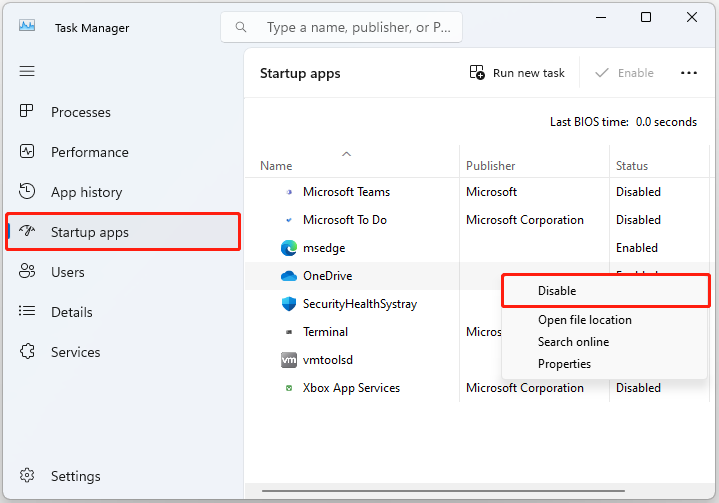
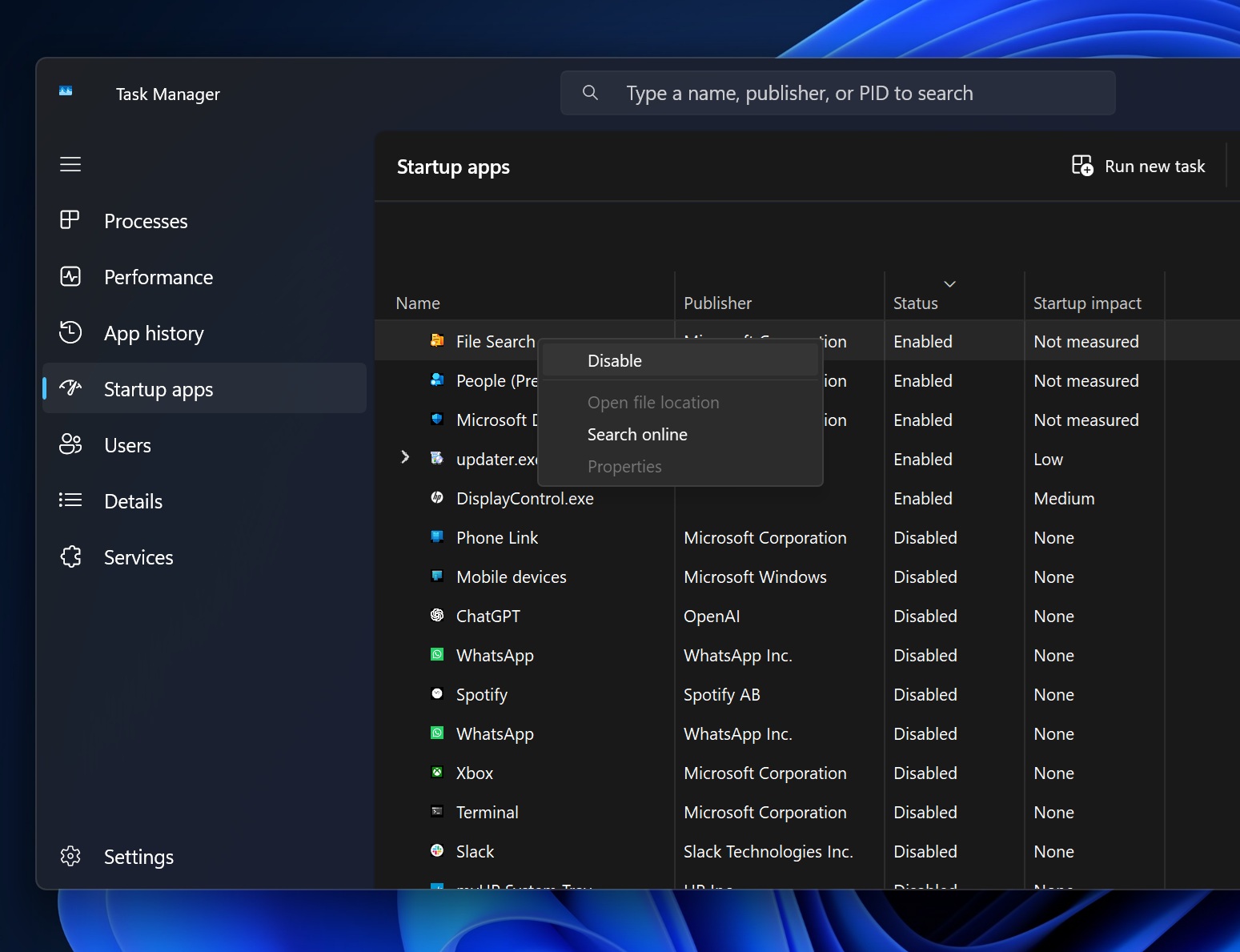
Press Ctrl + Shift + Esc to open the Task Manager.
Navigate to the Startup tab.
Right-click on any programs that you don't need immediately after boot and select Disable.
Restart your PC to check if the system speed improves.
Additionally, you can optimize performance by disabling unnecessary visual effects:
Right-click Start and select System.
Click Advanced system settings on the left.
In the System Properties window, click Settings under the Performance section.
Select Adjust for best performance to turn off animations and other visual effects.
Solution 3: Run Windows Troubleshooter and Perform a Clean Boot
Windows 11 includes built-in troubleshooters that can help diagnose and fix problems automatically.
To run the troubleshooter:
Go to Settings > System > Troubleshoot > Other troubleshooters.
Select the Performance troubleshooter and follow the on-screen instructions to let Windows detect any issues.
If you still experience problems, performing a clean boot may help identify the source of the issue. A clean boot starts Windows with a minimal set of drivers and startup programs:
Press Windows + R, type msconfig, and hit Enter.
In the System Configuration window, go to the Services tab and check the box that says Hide all Microsoft services.
Click Disable all and then go to the Startup tab.
Click Open Task Manager, and disable any remaining startup items.
Restart your PC to see if the issue persists.
Conclusion
While Windows 11 is a powerful and feature-rich operating system, it can come with its own set of issues. Slow performance is one of the most common problems, but with the solutions outlined above, you can quickly diagnose and fix the issue. Ensure your hardware meets the minimum requirements, update your drivers, disable unnecessary startup programs, and run troubleshooting tools. With these steps, your Windows 11 experience should be smoother and more efficient.
The Start Menu is one of the most essential components of Windows 11. However, some users experience a frustrating issue where the Start Menu stops responding completely.
Common symptoms include:
Clicking the Start button does nothing
The Windows key on the keyboard does not work
The taskbar becomes unresponsive
Search or pinned apps do not open
This issue often occurs after system updates or when important system files become corrupted.
Causes of the Problem
Possible causes include:
1. Windows Explorer crash
2. Corrupted system files
3. Third-party software conflicts
4. Buggy Windows updates
Solution 1: Restart Windows Explorer
Restarting Windows Explorer can quickly fix many taskbar and Start Menu issues.
Steps:
Press Ctrl + Shift + Esc
Open Task Manager
Find Windows Explorer
Click Restart
Photo Description:
Screenshot of the Task Manager showing Windows Explorer being restarted.
Solution 2: Run System File Checker
Windows includes a built-in tool that scans and repairs corrupted system files.
Steps:
Open Command Prompt as Administrator
Run the command:
sfc /scannow
Wait until the scan finishes.
Restart the computer.
Photo Description:
Screenshot showing Command Prompt running the System File Checker scan.
Solution 3: Re-register the Start Menu
If the Start Menu still does not work, you can re-register the Start Menu components.
Photo Description:
Screenshot of PowerShell executing the Start Menu re-registration command.
Conclusion
The Start Menu not working in Windows 11 is usually caused by Windows Explorer crashes or corrupted system files. Restarting Windows Explorer, running the System File Checker, or re-registering the Start Menu can typically resolve the issue without reinstalling the operating system.
Internet connectivity problems are one of the most common issues experienced by users of Windows 11. Sometimes WiFi appears connected, but there is no internet access, or the network may not appear at all.
Common symptoms include:
WiFi shows Connected but No Internet
Unable to connect to a specific network
WiFi network not appearing in the list
Random disconnections
This issue can be caused by driver errors, incorrect network configuration, or system bugs.
Causes of the Problem
Some of the most common causes are:
1. Corrupted or outdated WiFi drivers
2. Network configuration errors
3. Windows update conflicts
4. Corrupted network cache
Solution 1: Restart the Network Adapter
Restarting the WiFi adapter can quickly fix minor connectivity issues.
Steps:
Open Settings
Click Network & Internet
Select Advanced Network Settings
Disable the WiFi adapter
Wait a few seconds and enable it again
Photo Description:
Screenshot showing the Advanced Network Settings page in Windows 11.
Solution 2: Perform a Network Reset
If the issue persists, resetting the network settings may help.
Steps:
Open Settings
Go to Network & Internet
Select Advanced Network Settings
Click Network Reset
Restart your computer
This process will:
Remove all saved network configurations
Reinstall network adapters
Reset networking components
Photo Description:
Screenshot showing the Network Reset option in Windows 11 settings.
Solution 3: Reset Network Using Command Prompt
Advanced users often fix network problems using command-line tools.
Steps:
Open Command Prompt as Administrator
Run the following commands:
netsh winsock reset
netsh int ip reset
ipconfig /release
ipconfig /renew
ipconfig /flushdns
Restart your computer.
Photo Description:
Screenshot of Command Prompt running network reset commands.
Conclusion
WiFi connectivity problems in Windows 11 are often related to driver issues, corrupted network settings, or system bugs. Restarting the network adapter, resetting network settings, or using command-line tools can resolve most WiFi problems without needing professional repair.
Many users of Windows 11 report that their computer becomes noticeably slower after installing a system update. This issue can occur on both laptops and desktop PCs, even on systems with relatively high specifications.
Common symptoms include:
Slow startup or boot time
Applications opening slowly
Laggy animations
High CPU or RAM usage
System freezing temporarily
This problem often appears after major updates or when Windows installs cumulative patches in the background.
Causes of the Problem
Several factors may cause Windows 11 to slow down after an update:
1. System Reindexing
After updates, Windows reindexes files to improve search performance.
2. Incompatible or Outdated Drivers
Some drivers may not work optimally with the latest Windows update.
3. Too Many Startup Applications
Programs launching automatically during boot can significantly slow the system.
4. Update Bugs
Sometimes updates contain bugs that temporarily affect system performance.
Solution 1: Disable Unnecessary Startup Programs
Reducing startup applications can greatly improve boot speed and performance.
Steps:
Right-click the Start Menu
Select Task Manager
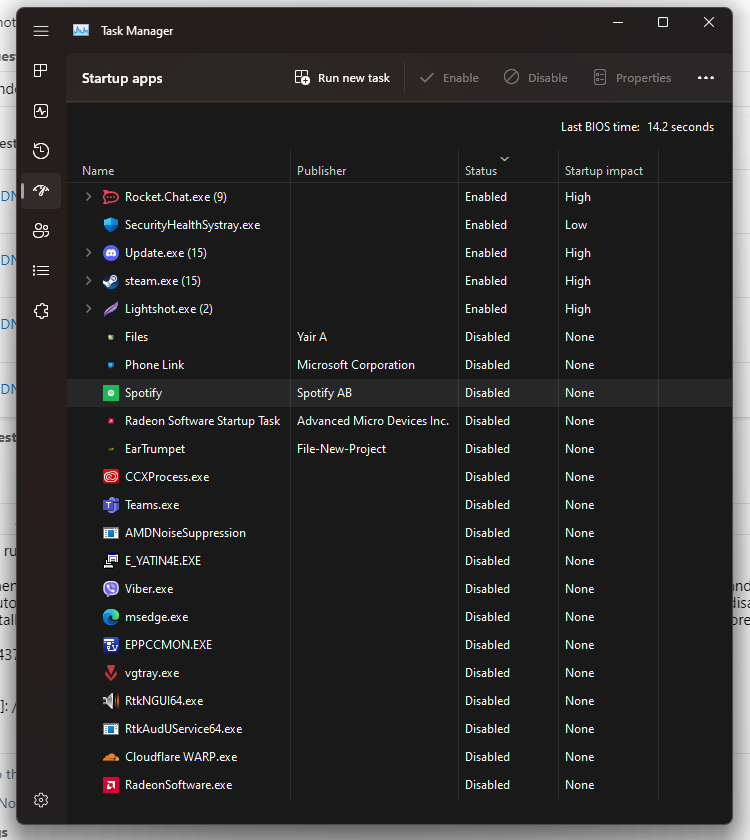
Click the Startup Apps tab
Disable programs that are not necessary
Examples of programs that commonly slow startup:
Discord
Spotify
Adobe Updater
Microsoft Teams
Photo Description:
Screenshot of the Windows 11 Task Manager showing the Startup Apps tab with several apps disabled.
Solution 2: Update Device Drivers
Drivers that are outdated or incompatible may cause performance issues.
Steps:
Right-click Start
Select Device Manager
Choose the device (for example: graphics card or network adapter)
Click Update Driver
Important drivers to keep updated:
Graphics driver (GPU)
Chipset driver
Network driver
Storage controller driver
Photo Description:
Screenshot of the Device Manager window in Windows 11 with the Update Driver option selected.
Solution 3: Uninstall Recent Windows Updates
If the slowdown started right after an update, removing the latest update might solve the issue.
Steps:
Open Settings
Go to Windows Update
Click Update History
Select Uninstall Updates
Photo Description:
Screenshot showing the Windows Update History page in Windows 11.
Conclusion
Slow performance in Windows 11 after updates is usually caused by system background processes, outdated drivers, or update bugs. By disabling startup apps, updating drivers, and uninstalling problematic updates, most users can restore their system performance without reinstalling Windows.